From creating the request to submitting it: choose the service, work on a draft, complete the activities and amounts, upload the supporting documents, review, then submit. These steps are shared by all four services; the examples show Innovate or Pay.
4
Create a request
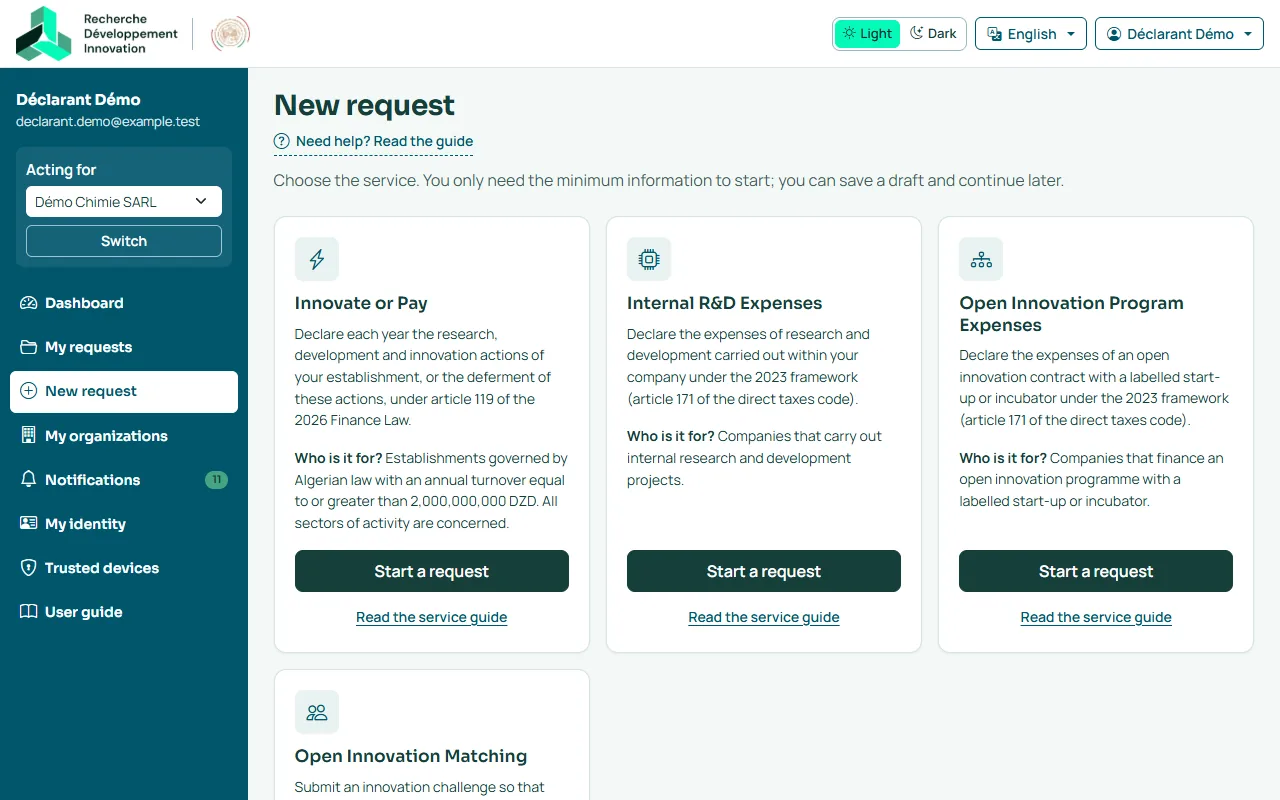
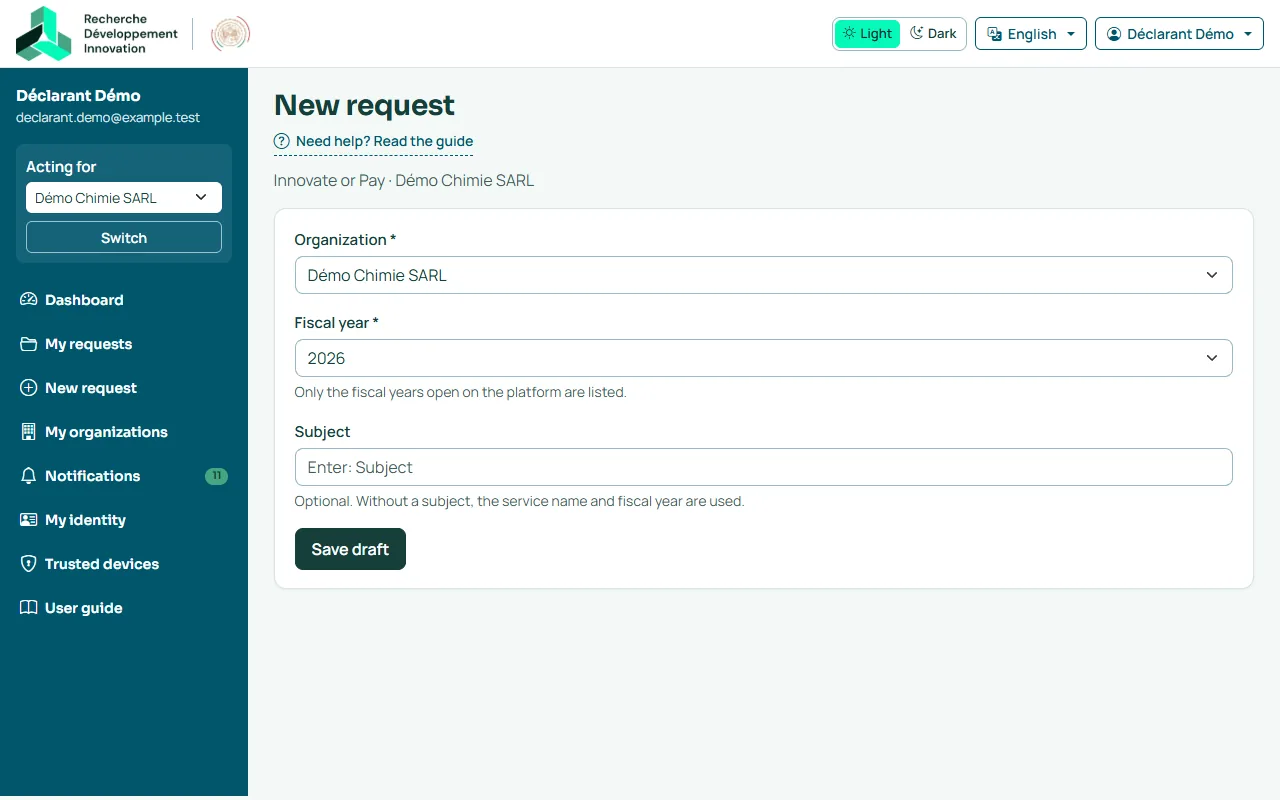
Click New request, then Start a request on the card of the service you need. Choose the organization you are acting for and, when the service asks for it, the fiscal year. Add a subject if useful to recognise the request, then click Save draft: the service editor opens.
The four services; each card has its Start a request button.
Choose the organization and the fiscal year, then Save draft.
5
Save a draft
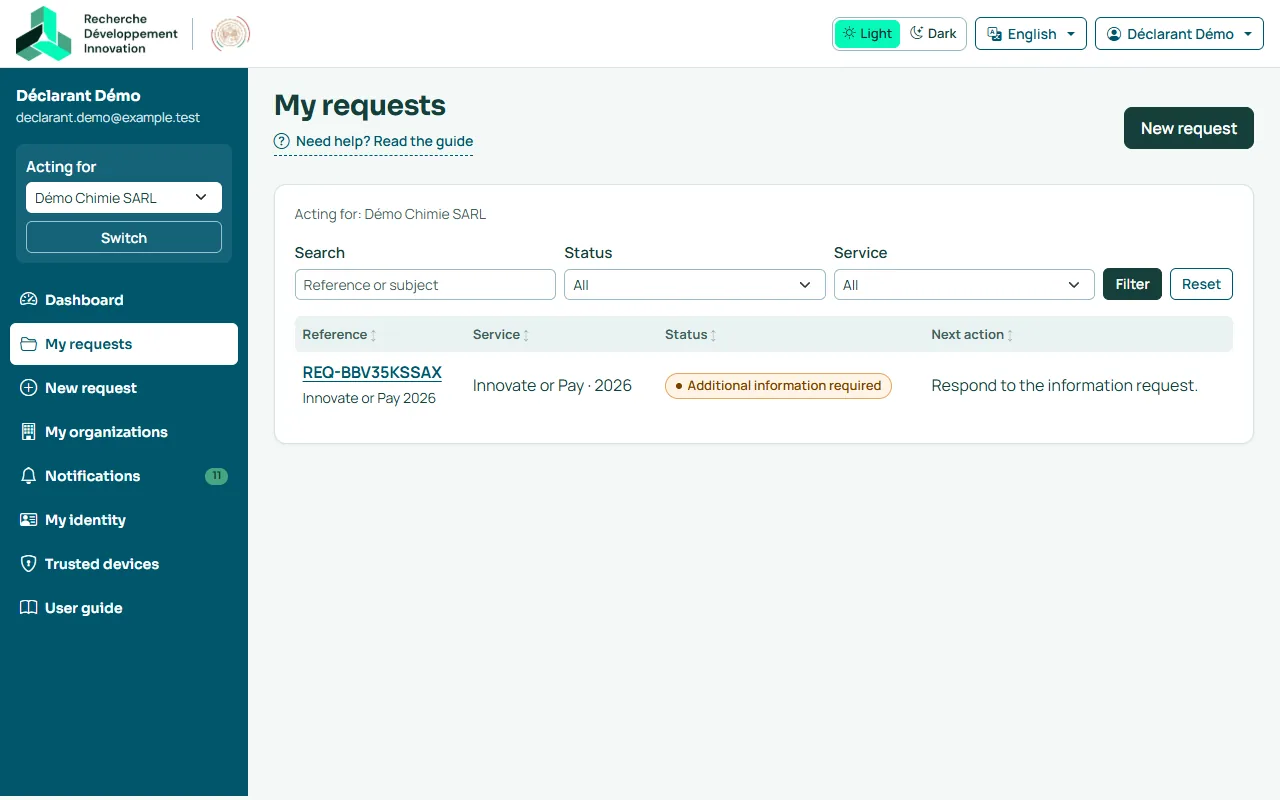
Save sends nothing to the administration: the request remains a Draft that only you (and the organization’s authorised representatives) can see and edit. You can leave the platform and resume later from My requests or the Dashboard. Only the Submit the request button, at the last step, sends the request.
My requests: each request, its service, fiscal year and status (Draft, Submitted / Under review…).
6
Complete the activities and amounts
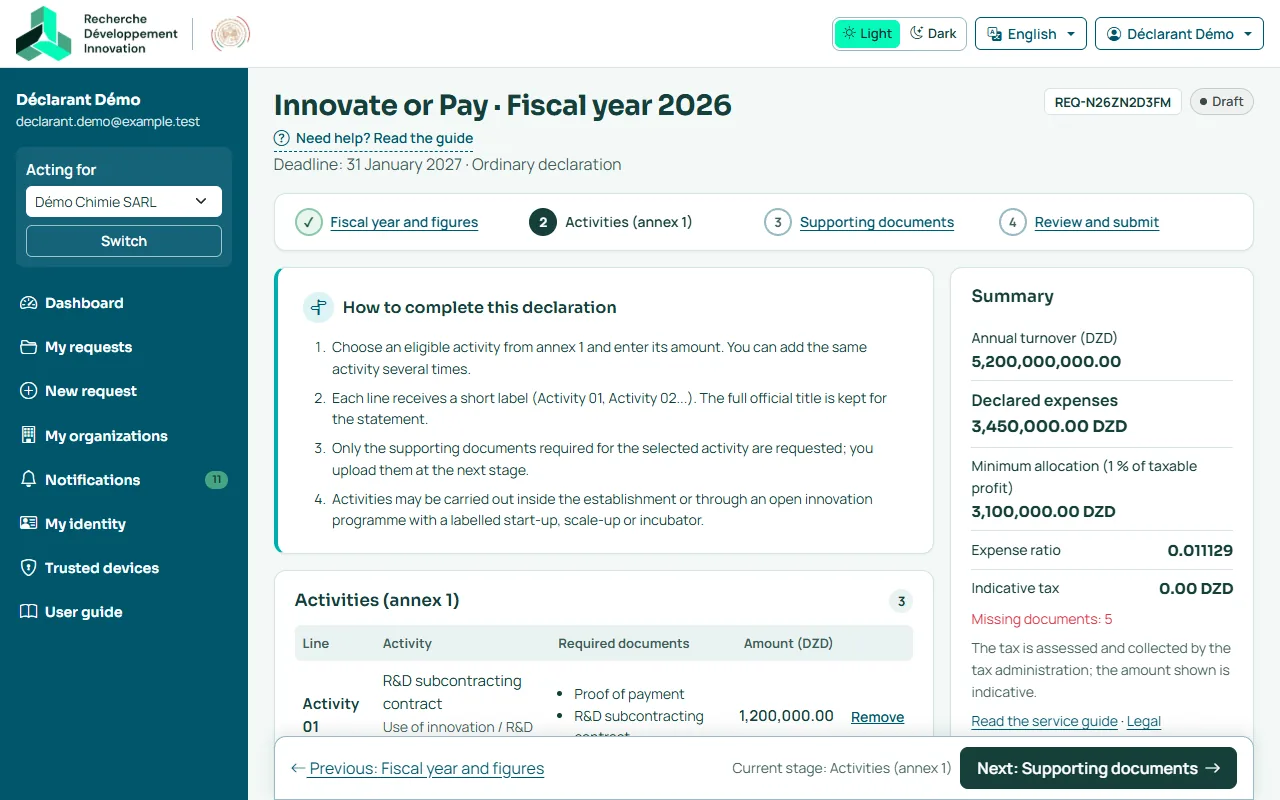
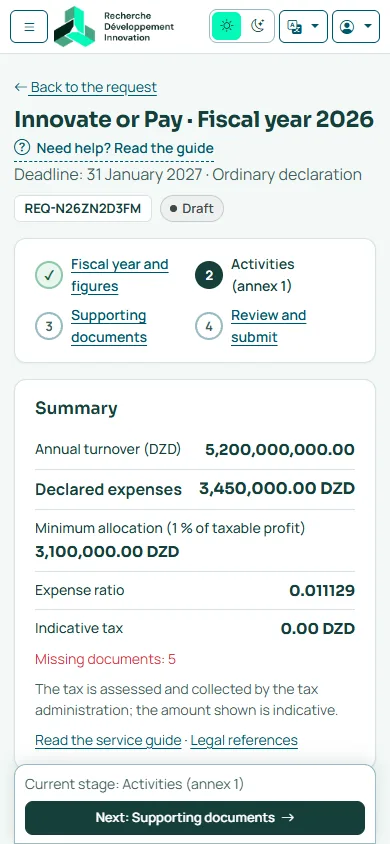
Depending on the service, you choose an official activity (for Innovate or Pay, an Eligible activity (annex 1)) or an expense category, then enter its Amount (DZD). The activity says what was done; the amount says how much it cost. Each line gets a short label (Activity 01, Activity 02…).
Innovate or Pay example: the lines already added, their required documents and their amount.
7
Add the documents
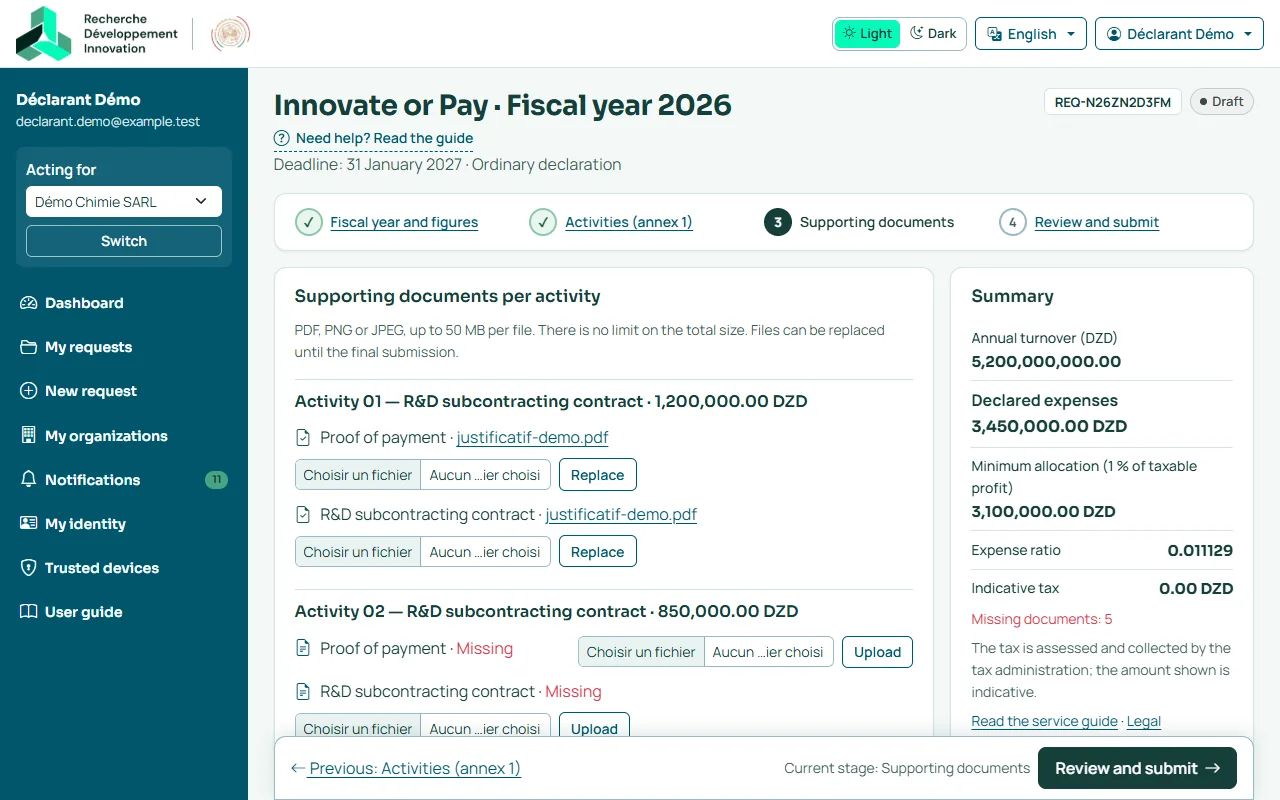
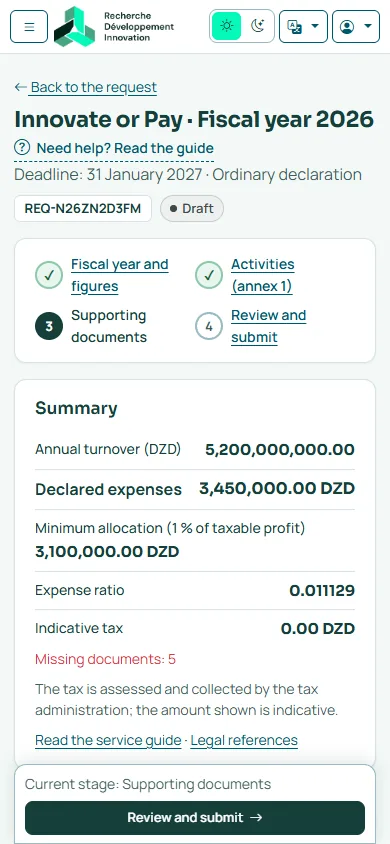
Supporting documents are requested per activity: only those of the chosen activity are required. Accepted formats: PDF, PNG or JPEG, up to 50 MB per file (no limit on the total). Choose the file, then click Upload. A document not yet uploaded is marked Missing; an uploaded document can be changed with Replace while the request is a draft.
One document icon per item; “Missing” in red for what remains to upload, with the Upload button.
8
Review and submit
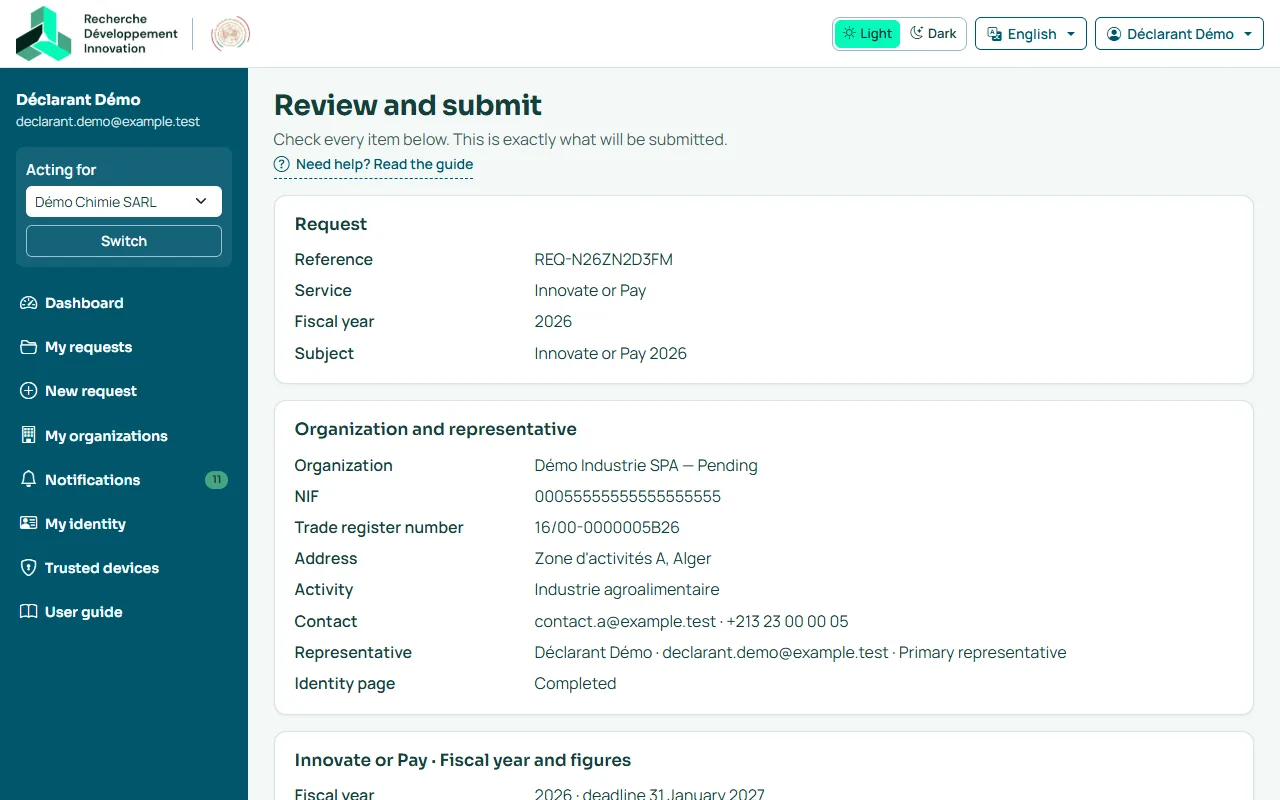
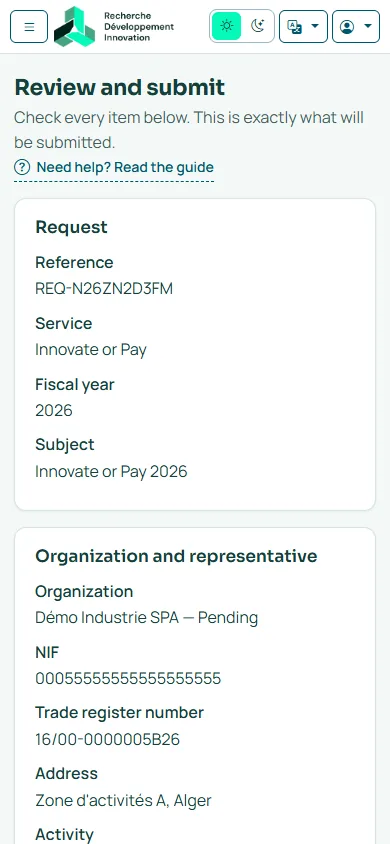
Click Review and submit. The page summarises exactly what will be sent: organization, figures, activities, amounts and documents. If something is missing, it is flagged and submission is not yet possible. Tick the responsibility statements, then click Submit the request.
After submission, the request can no longer be edited or cancelled in the ordinary way. If the administration needs more information, it will ask you (see When an action is required).
The summary is exactly what will be sent; the Submit the request button is at the bottom of the page.
Official documents and QR code
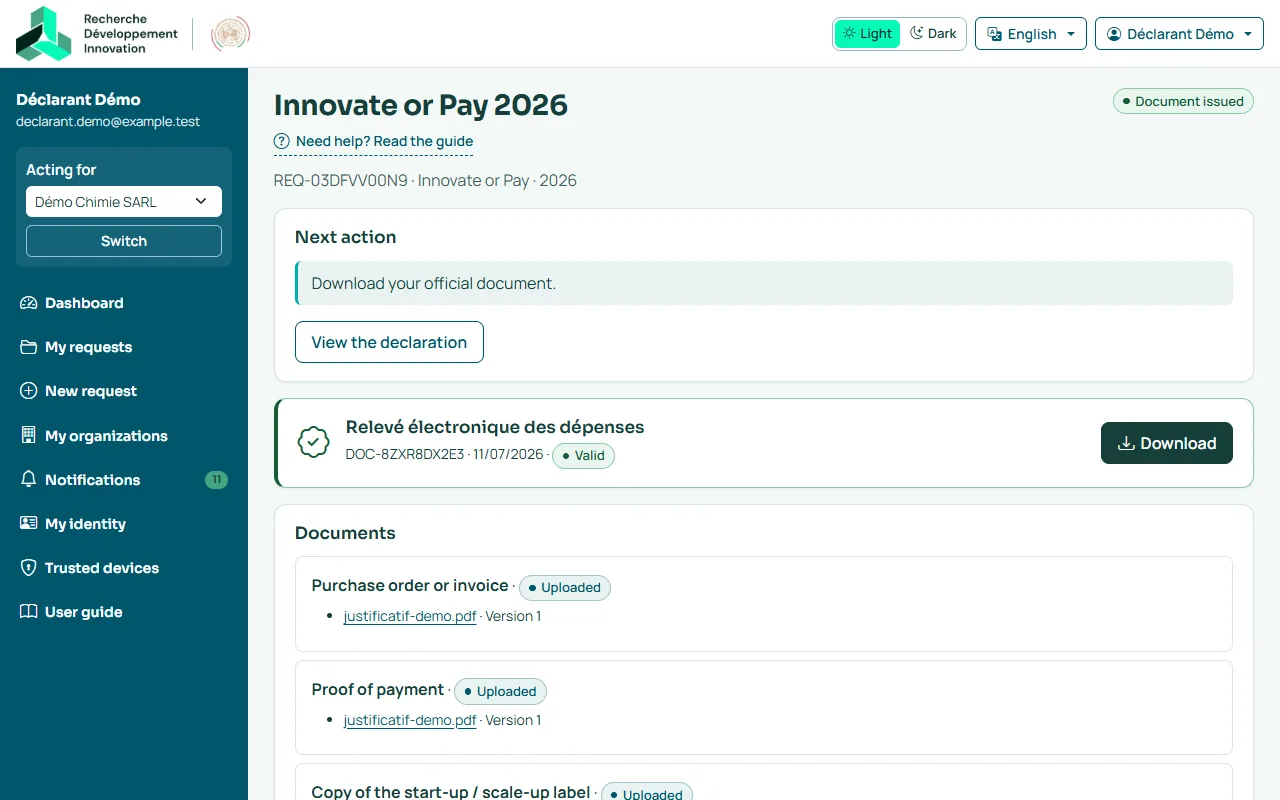
After the decision, the request shows its Documents with a Download button. Each official document is a PDF following the regulatory model and carries, from the moment it is created, a QR code and a printed verification code:
Innovate or Pay: electronic expenditure statement (annex 2), Néant statement and deferment undertaking (annex 3) — see PDF documents, QR and verification;
Internal R&D Expenses: official annex I form;
Open Innovation Program Expenses: official annex II form.
The QR code and the verification code allow the tax administration to check its authenticity; this check is reserved for its authorised officers. Do not alter the document.
Approved request: the electronic expenditure statement is downloaded from the Documents box.